
The Rise of AI in Everyday Tools

The Rise of AI in Everyday Tools

Nowadays, artificial intelligence (AI) is more than simply a catchphrase or an idea found only in high-tech labs and science fiction films. It’s subtly changing our daily lives in ways we might not even be aware of at first. AI is enabling the smarter, faster, and more intuitive tools we use daily, from the smartphone in your pocket to the smart assistant in your living room.

Smarter Phones and Apps

The majority of us carry around a small AI powerhouse. AI-powered features abound in contemporary cellphones. Real-time assistance is provided by voice assistants that comprehend natural language, such as Siri and Google Assistant. Photo programs automatically categorize and enhance images. Predictive text and smart replies save time while composing messages. AI systems that learn your usage patterns even optimize your battery.

AI in Homes

Gradually adapting settings to your daily schedule without requiring continuous human input. Another area where AI is flourishing is smart houses. AI is used by gadgets like the Amazon Echo and Google Nest to understand voice commands and do everyday chores, such as controlling smart lighting and thermostats, playing music, and creating reminders. Your preferences are learned by AI. 

The Rise of AI in Everyday Tools

Productivity Tools Get a Boost

AI is also altering how humans operate. Natural language processing is used by apps such as Grammarly to improve writing by recommending modifications to tone, grammar, and clarity. Google Workspace and Microsoft Office now feature smart features that offer real-time ideas for emails, documents, and spreadsheets. AI is simplifying our communication and teamwork, which makes daily chores simpler and more effective.

Personalized Experiences

AI is used by streaming services like Netflix and Spotify to examine user behavior and provide tailored suggestions. In addition to improving user experience, this technology aids platforms in maintaining audience engagement. Similar to this, shopping applications make product recommendations based on user preferences, browsing history, and previous purchases.

Health and Wellness

AI is even entering the realm of personal health. AI is used by wearables such as the Fitbit and Apple Watch to track heart rate, measure physical activity, and provide insights to enhance health and sleep. AI is used by mental health applications such as Headspace and Calm to tailor mindfulness and meditation techniques according to user input and behavior.

Health and Wellness

Challenges and Considerations

Although it’s fantastic to see AI becoming more prevalent in everyday tools, worries about data security, privacy, and digital dependence are also raised. For many tools to work properly, user data must be gathered and analyzed. Because of this, it is crucial that businesses implement clear policies and that users are aware of how their data is being used.

Final Thoughts

Artificial intelligence (AI) has arrived and is now smoothly incorporated into the instruments we use daily. AI will significantly improve our everyday routines’ efficiency, customisation, and convenience as it develops. Striking the correct balance between utilizing AI’s potential and safeguarding our online safety will be difficult.

AI is silently working in the background to make life a little bit easier, whether you’re drafting an email, asking your smart speaker what the weather is like, or receiving workout recommendations from your fitness band. AI’s emergence in commonplace technologies is the new standard, not only a fad.
10 Secret Photoshop Tricks Every Designer Should Know

10 Secret Photoshop Tricks Every Designer Should Know

With countless tools and options, Adobe Photoshop is a designer’s dream come true. However, some of its hidden treasures are frequently missed by even experienced users. Whether you’re working on digital painting, logo design, or website mockups, these little-known capabilities can make your job go more quickly and efficiently. Let’s explore ten Photoshop hidden features that every designer ought to be aware of.

1. Content-Aware Fill Workspace

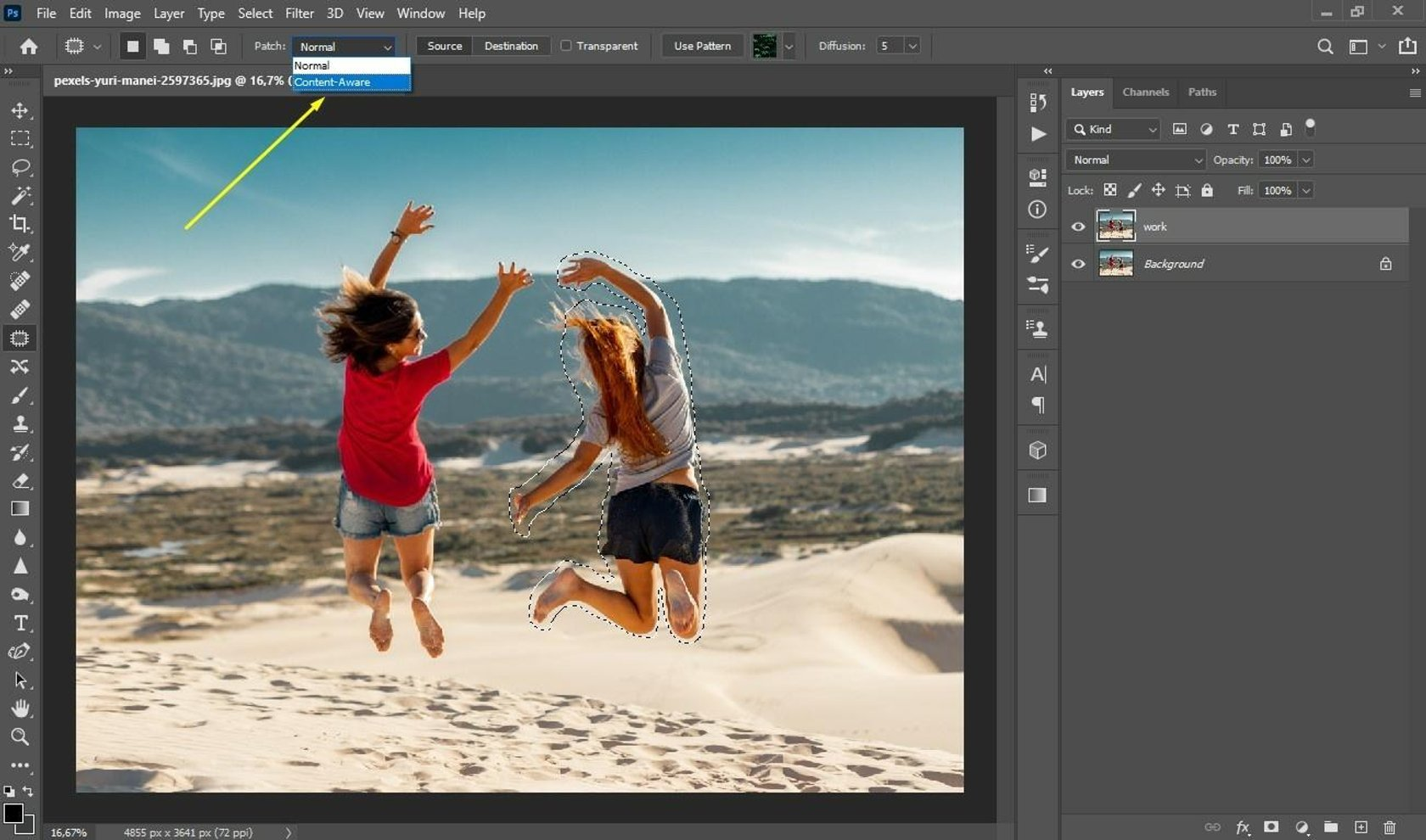
Although most people are familiar with the fundamentals of content-aware fill, Photoshop now provides a dedicated workspace. You can discover more precise controls for filling in undesirable objects and sampling regions by selecting Edit > Content-Aware Fill. Ideal for adjusting intricate textures or eliminating background distractions.

1. Content-Aware Fill Workspace

2. Select Subject with One Click

Photoshop employs artificial intelligence (AI) to automatically identify and choose the image’s primary subject under Select > Subject. It saves a great deal of time when isolating subjects and is extremely accurate, especially with intricate borders like hair.

3. Color Lookup Adjustment Layer

Want to create a dramatic effect without using intricate color grading? Try the adjustment layer for Color Lookup. It is an excellent application for making mood boards or stylizing pictures, and it allows you to add LUTs (Look-Up Tables) for fast color effects.

4. Brush Smoothing

Photoshop’s Brush Smoothing function aids in producing cleaner strokes if your hand isn’t the steadiest. Simply use the Brush Tool and change the smoothing percentage on the top toolbar. For illustrators and letterers, it’s revolutionary.

5. Layer Comps

Creating several iterations of the same layout design? You may save various visibility, location, and style settings for layers using Layer Comps. For comparing variants without generating distinct files, it’s ideal.

Layer Comps

6. Match Font Tool

Unable to identify the typeface you found in an image? Make use of Type > Match Font. After analyzing the chosen text area, Photoshop will recommend related fonts that are either already on your computer or accessible through Adobe Fonts.

7. Quick Export as PNG

Right-click a layer and select Quick Export as PNG to save time. It’s perfect for social media managers or site designers who require transparent, quick asset exports.

8. Smart Objects for Non-Destructive Editing

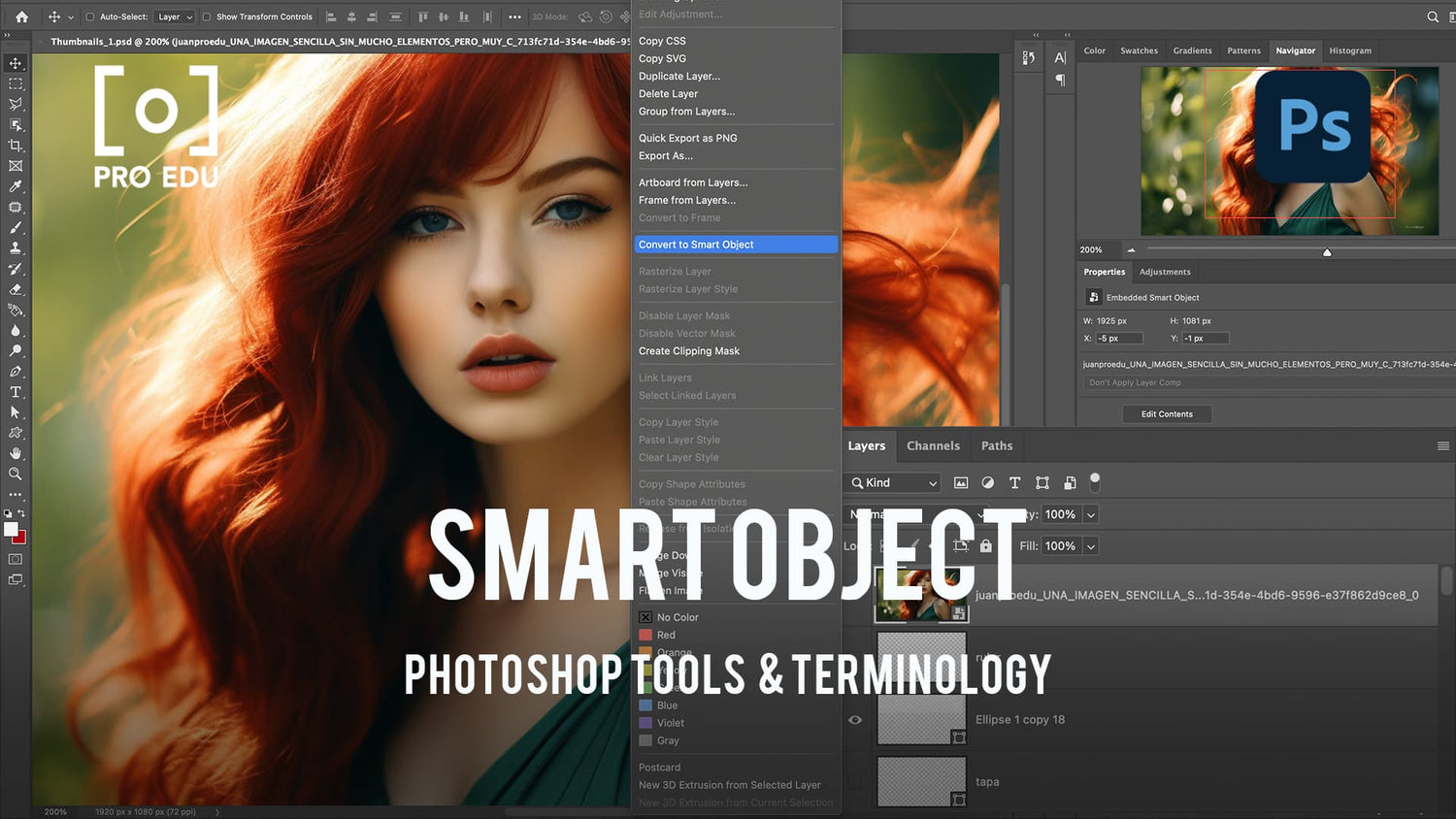
To apply filters and transformations without causing any damage, convert layers to Smart Objects. You can always go back and make changes without sacrificing quality, which is crucial when working on intricate design tasks.

Smart Objects for Non-Destructive Editing

9. Symmetry Painting

You can paint in a mirrored manner along vertical, horizontal, or arbitrary axes by using the Brush Tool’s Symmetry Mode. It’s ideal for making symmetrical pictures, patterns, and mandalas..

10. Hidden Gradient Presets

To access Photoshop’s hidden gradient presets, click the gear icon in the Gradient Picker and select “Legacy Gradients.” These consist of imaginative and practical gradients for overlays, backdrops, and other applications.

Final Thoughts

If you know where to look, Photoshop has a ton of options that can help you do your work more creatively and efficiently. You’ll improve your design process and find new ways to realize your ideas by investigating these hidden tools. So feel free to experiment and include Photoshop’s hidden tools into your daily toolbox.

How to Generate Videos with Veed: A Simple Guide for Beginners

Veed.io

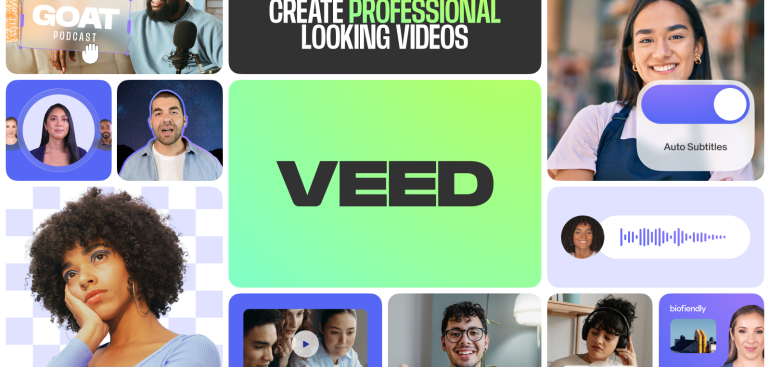
Making movies of a high caliber doesn’t have to be difficult or time-consuming. Anyone, from marketers to content producers, can create engaging and conversion-boosting films with Veed’s user-friendly online video editing platform. Veed streamlines and eases the process of creating tutorial videos, promo reels, and social media material. Here is a basic, step-by-step guide to get you going.

Step 1: Sign Up and Start a New Project

Go to Veed.io and create a free account to get started. Click the “New Project” option after logging in. You have the option of starting from scratch or using one of Veed’s pre-made templates, which are excellent for gaining ideas and saving time.

Signup and start with Veed

Step 2: Upload or Record Your Video

Direct uploading of media files from your device or cloud storage is possible. Among the many formats that Veed supports are MP4, MOV, AVI, and others. If you don’t have any footage yet, you can record your video right away with Veed’s webcam and screen recording features. This is particularly helpful for reaction videos, walkthroughs, and tutorials.

Step 3: Customize and Edit

Once your footage is uploaded, the real magic begins. Veed’s user-friendly timeline editor allows you to:

  • Trim, cut, and split clips
  • Add subtitles (manually or using AI-powered auto-subtitling)
  • Insert text, images, logos, and emojis
  • Choose from music tracks or upload your audio
  • Apply filters, transitions, and effects

Technical expertise is not required to organize elements thanks to the drag-and-drop feature. Additionally, you may change the size of your videos to fit other networks, such as LinkedIn, YouTube, Instagram, and TikTok.

Step 4: Use AI Tools for Fast Video Creation

Video production can be accelerated with Veed’s AI-powered tools. For instance, you can utilize the text-to-speech function to add voiceovers in various languages and dialects, or the AI script generator to create an engaging script. These tools are excellent for turning text-based content, such as blog articles or newsletters, into videos or for repurposing content.

Step 5: Export and Share

Click “Export” to finish processing your video once it appears perfect. Depending on your preferences, you can select from a variety of resolutions, including HD and Full HD. Once the video has been exported, you have the option to download it, share it using a link, or post it straight to social media from the Veed dashboard.

Final Thoughts

Regardless of editing experience, Veed enables anyone to create videos. It’s the ideal tool for companies, schools, and artists wishing to create a powerful visual effect because of its easy-to-use interface, AI features, and versatile export possibilities. Why wait, then? Start making videos that communicate your narrative the way you want it to be told by going to Veed.io.