The Significance of a Password Manager for All Remote Workers

The Significance of a Password Manager for All Remote Workers

Working remotely has become the new standard rather than a fad. There is a greater need than ever for robust cybersecurity as more professionals transition from office desks to home settings, coffee shops, or even the beach. One of the digital technologies that remote workers tend to overlook the most? A password organizer.

A password organizer is not only helpful, but also necessary if you manage sensitive client information, log into numerous apps, or switch between platforms daily.

The Issue: Insufficient Security and Too Many Passwords

We all have dozens or maybe hundreds of accounts on the internet, let’s face it. Remote workers frequently log in and out of cloud storage, financial software, project management applications, and work email.

Many individuals either:

  • Use weak passwords that are simple to figure out.
  • Use the same password for all of your accounts.
  • Passwords can be saved in browsers, notes apps, or notebooks.

This gives cybercriminals the ideal chance.

In reality, one of the main reasons for online attacks, according to cybersecurity reports, is password-related breaches.

The Issue: Insufficient Security and Too Many Passwords

A Password Manager: What Is It?

An application that creates, saves, and automatically fills in complicated, one-of-a-kind passwords for every one of your internet accounts is called a password manager. The software securely handles the rest, leaving you with just one master password to remember.

Well-known instances include:

  • 1 Password
  • LastPass
  • Bitwarden
  • Dashlane
  • NordPass

A Password Manager: What Is It?

The Need for One for Remote Workers

1. Make sure all of your accounts are secure.

You probably use Slack, Zoom, Google Workspace, Trello, Dropbox, and other technologies while you work remotely. No more “Password123” or “qwerty” nonsense—a password manager guarantees that every login is distinct and secure.

2. Conserve Time

Don’t waste time looking through documents or changing passwords. Using a password manager allows you to stay busy and focused by automatically filling in your login information.

3. Safeguard Customer and Business Information

Using strong and secure passwords is a fundamental duty, whether you’re working with clients or handling sensitive data. Poor password hygiene might result in a breach that causes financial and legal issues.

4. Utilize Anytime, Anywhere

No matter where you work, you can always be safely logged in thanks to the majority of password managers that sync across desktop, mobile, and tablet devices.

5. Receive Notifications of Account Breach

Nowadays, a lot of managers provide data breach monitoring, alerting you if one of your accounts is affected so you can act promptly.

The Need for One for Remote Workers

Extra Benefits of Password Manager Use

  • Support for two-factor authentication (2FA)
  • Digital vaults and encrypted notes
  • Sharing team passwords (for freelancers and small teams)
  • Password strength checks are built in

Extra Benefits of Password Manager Use

How to Begin

  • Select a trustworthy password manager (several offer free trials).
  • Enter your current logins manually or import them.
  • Allow the app to create secure new passwords for you.
  • To gain access, use your master password and turn on 2FA.

How to Begin

Concluding remarks

Your digital workspace is your lifeblood as a remote worker, but every account you use could be a security risk. In addition to helping you secure those doors, a password manager improves productivity, clears your mind, and protects your data.

Thus, avoid waiting for a security incident. No matter where you are, operate more efficiently, securely, and self-assuredly by getting a password manager now.

Ways to Spot a Phishing Scam in Your Email

Ways to Spot a Phishing Scam in Your Email

With all of the offers, updates, and critical messages, your inbox may seem like a haven, but it’s also a major target for scammers. Each year, phishing scams get more complex, deceiving victims into divulging private information, opening dangerous files, or clicking on dubious links.

Knowing how to spot a phishing email is more important than ever in 2025, as phishing attempts continue to increase. Here’s how to recognize the warning signs and avoid becoming a victim.

Phishing: What Is It?

Phishing is a kind of cyberattack in which con artists pose as reliable organizations, such as banks, social media sites, or even coworkers, in an attempt to fool you into disclosing financial or personal information. These emails frequently include malware-infected attachments or links to phony websites.

Typical Indications of a Phishing Email

Typical Indications of a Phishing Email

1. Untrustworthy Email Address

Even if the email seems to be from a reputable organization, the sender’s address gives away something else. For instance:

  • Support@paypal.com is reputable.
  • The phishing email is support@paypalsupport-secure.com.

Verify the domain name after the “@” sign at all times. It most likely is if it seems strange.

2. Standard Salutations

Phishing emails frequently begin with ambiguous salutations such as:

  • “Dear Client,”
  • “To the User,”
  • “Hello, friend.”

Your name is typically used in communications from reputable businesses. A generic greeting may indicate that the communication was issued in bulk.

3. Threats or Urgent Wording

Scammers use haste and anxiety to make you act quickly:

  • “We’ll suspend your account!”
  • “Action must be taken immediately!”
  • “Unusual attempt to log in detected!”

Take a moment to verify the legitimacy of the email if it is attempting to scare you into clicking something.

4. Unexpected Links or Attachments

Never click on a link or open an attachment in an email unless you are positive it is secure. To preview the URL, hover over it (don’t click!). It can be malicious if it appears strange or doesn’t match the sender’s domain.

5. Personal Information Requests

Sensitive information, such as credit card numbers, passwords, or Social Security numbers, will never be requested over email by a trustworthy business.

It’s most likely a scam if the email asks you to “reset your account” or “verify your identity” using a form.

6. Spelling and Grammar Mistakes

Typographical errors, odd wording, and poor grammar are major warning signs. Professional businesses communicate carefully, while scammers frequently don’t.

7. Offers That Seem Too Good to Be True

If the email makes the following claims:

  • A substantial monetary reward
  • A gift card that you did not purchase
  • A complimentary trip that you didn’t enter to win

It’s probably a phishing trap bait.

Typical Indications of a Phishing Email

How to Keep Yourself Safe

  • Set up your accounts to use multi-factor authentication (MFA).
  • Make use of email filters and antivirus software that is up to date.
  • Never reply to emails that seem suspect.
  • Notify your email provider or the spoofing firm about phishing efforts.
  • Learn new phishing techniques regularly.

Concluding remarks

Despite their cunning, phishing scams are not imperceptible. You can identify the warning signs early and protect your email and personal data with a little awareness and vigilance.

When in doubt, simply erase instead of clicking.

How to Choose the Right Video Editing Software

How to Choose the Right Video Editing Software

Having the appropriate video editing software is crucial in a world where digital platforms are dominated by video content. Whether you’re a small business owner, social media manager, or YouTuber making marketing videos, the quality and effectiveness of your work can be greatly impacted by the tool you choose. It can be difficult to find the ideal fit with so many alternatives available. This advice will assist you in making an informed choice.

1. Define Your Skill Level

Determine your degree of experience before delving into the features and costs of different tools. Are you a novice trying to find something simple and straightforward to use? Or do you work as a professional and require sophisticated tools like multicam editing, color grading, or motion tracking?

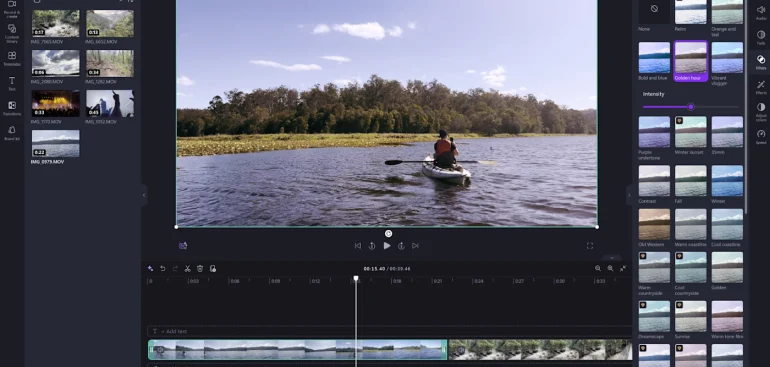
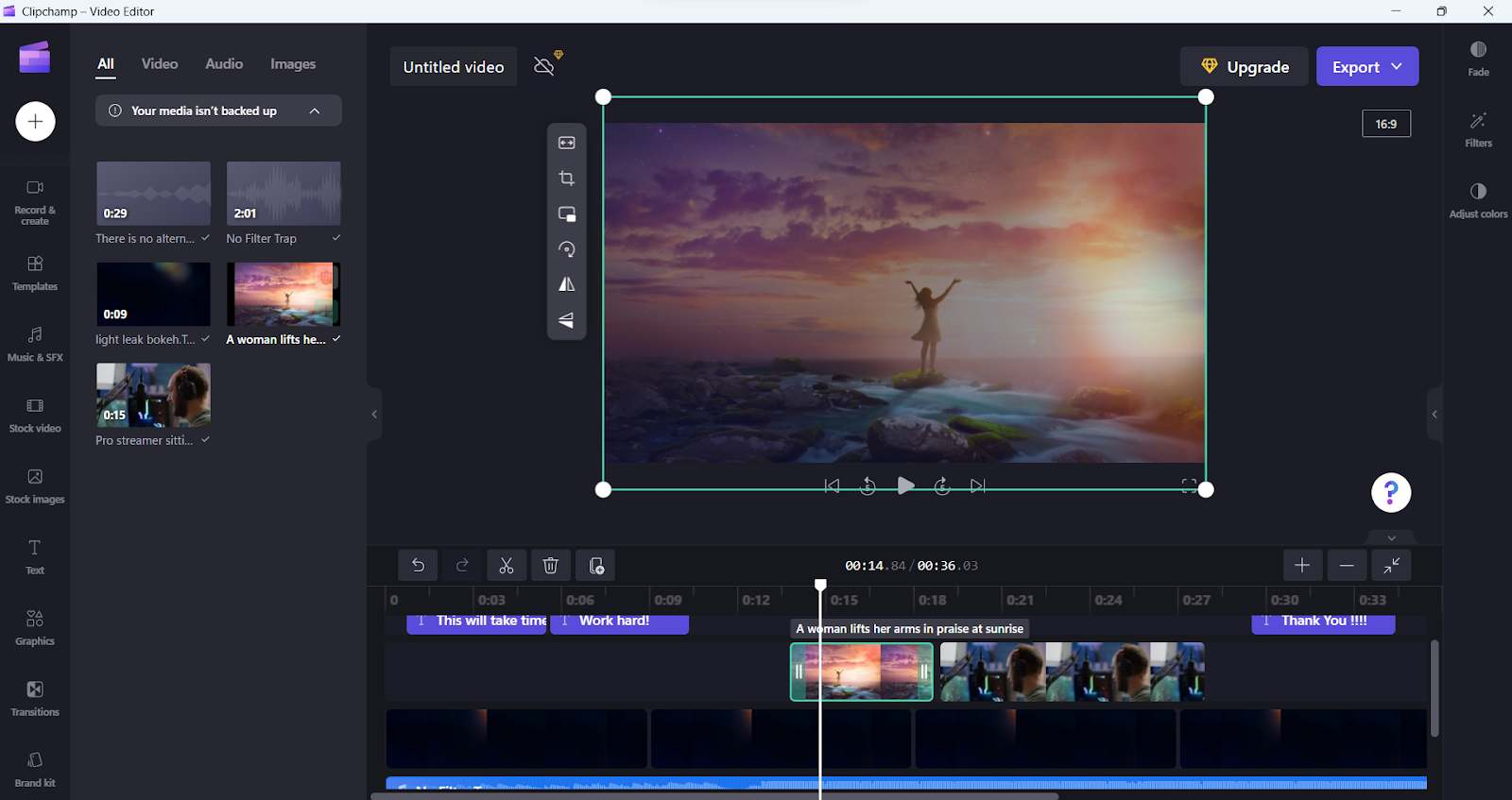
  • Beginners: Seek out programs with integrated tutorials and drag-and-drop interfaces. Clipchamp (Windows) and iMovie (Mac) are two examples.
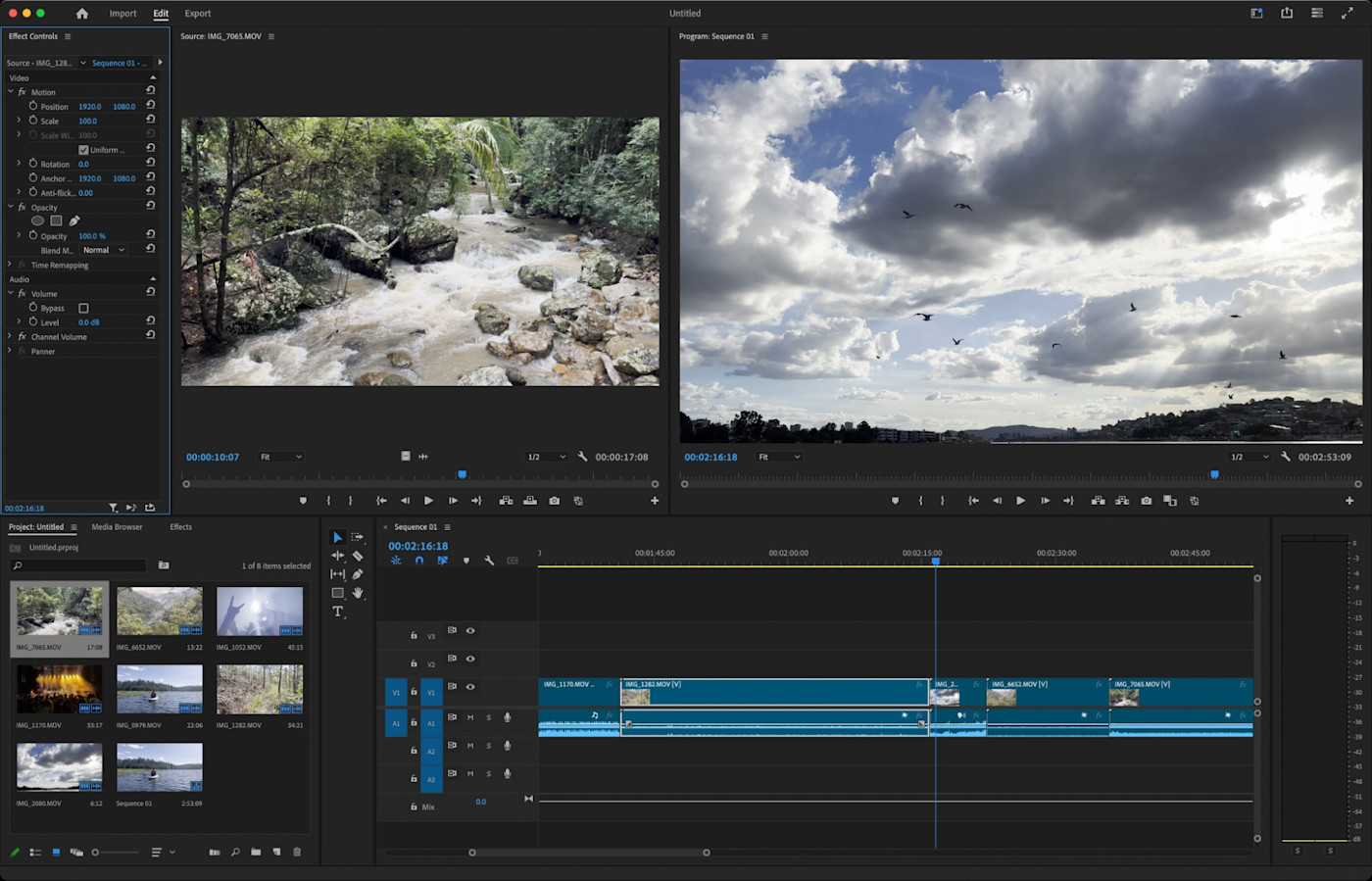
  • Intermediate to Advanced Users: Take into account programs with more advanced editing functions, such as Adobe Premiere Pro, Final Cut Pro, or DaVinci Resolve.

2. Consider Your Purpose

Video editors are not all made equal. While some are optimized for YouTube videos or social media content, others are made for motion picture films. Consider the following uses for the software:

  • Search for royalty-free music, export options for several platforms, and templates for social media and YouTube.
  • Business Marketing: Select programs that allow for brand personalization and integration with stock libraries.
  • Filmmaking: Select software that allows for multilayer editing, color correction, and high-resolution formats.

Consider Your Purpose

3. Check for Compatibility

Verify that the program you select is compatible with your hardware and operating system. While some editing software is only compatible with Macs or Windows, others might need more RAM or powerful GPUs to run properly.

Cloud-based tools like WeVideo or CapCut provide cross-device editing flexibility if you’re constantly on the road.

4. Look at the Features

The features of a good video editing program should be balanced according to your needs. Typical characteristics to search for include:

  • Multi-track editing 
  • Transitions and effects 
  • Audio editing tools 
  • 4K or higher video support 
  • Green screen/chroma key capabilities

You can also save time by using extra features like motion graphics, auto-captioning, and direct upload to social media.

Look at the Features

5. Think About Your Budget

The cost of video editing software varies, ranging from free to paid memberships. Although free versions are excellent for trying things out, they frequently have limited features or watermarks. More features and higher-quality exports are typically available in paid versions.

  • Free Tools: iMovie, DaVinci Resolve (basic), CapCut 
  • Mid-range: Filmora, Movavi 
  • Professional: Adobe Premiere Pro, Final Cut Pro

Final Thoughts

Your objectives, level of expertise, and financial constraints will all influence the video editing software you choose. Determine your needs first, then, if there are any free trials available, try out a few possibilities. You may realize your creative vision more quickly and efficiently if you have the correct tool.